
FROM IMAGE TO PATTERN
How to turn an image into a bead pattern
Use Perler Beads Generator to convert an image into an editable grid, then export a pattern chart and a materials list.
- Upload an image: Open the editor and choose a clear subject with a simple background.
- Set the size: Choose a width; image height follows its aspect ratio. Simple silhouettes work at smaller sizes, while detailed pictures usually need more cells.
- Choose style and colors: Cartoon style favors clear color blocks; realistic style preserves tonal changes. A lower color limit simplifies supplies but can remove detail.
- Review the pattern: Refine edges with drawing tools and layers. Check the isolated bead warning.
- Export: Download PNG or PDF charts, an Excel materials list, or a JSON project to continue editing later.
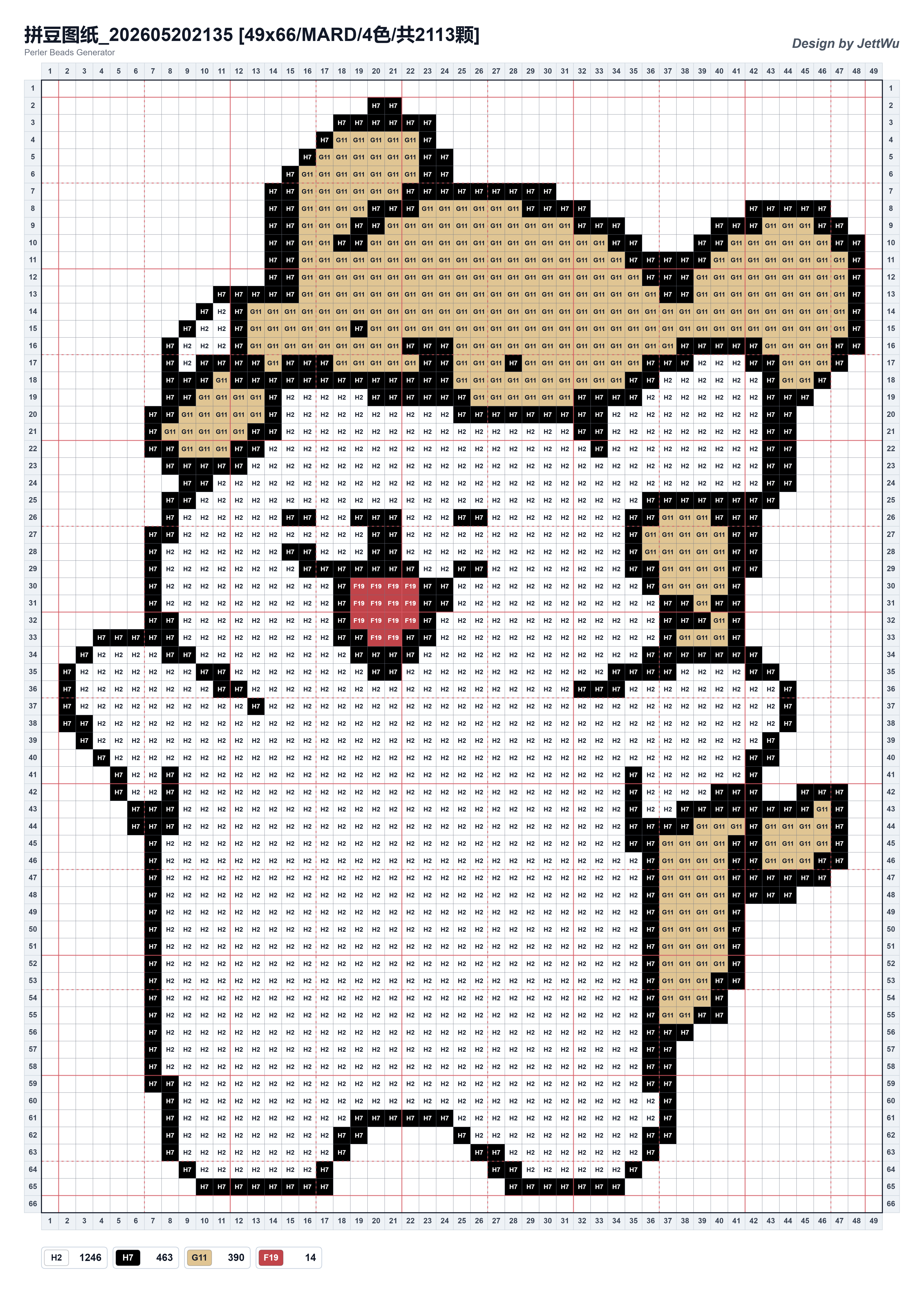
Original image and generated chart
This cartoon example comes from the project documentation. Results depend on image, size, background settings, and color limit; exact generation settings are not recorded here.

Is the original image uploaded?
Conversion and editing happen in your browser. If you publish a pattern to the marketplace, its pattern data is sent to the server and a preview becomes public.